Fix blurry Instagram Reels and stories
Instagram compresses every video you post. Upload at the right size with the right setting on, and enlarge small clips to 1080p before you post.
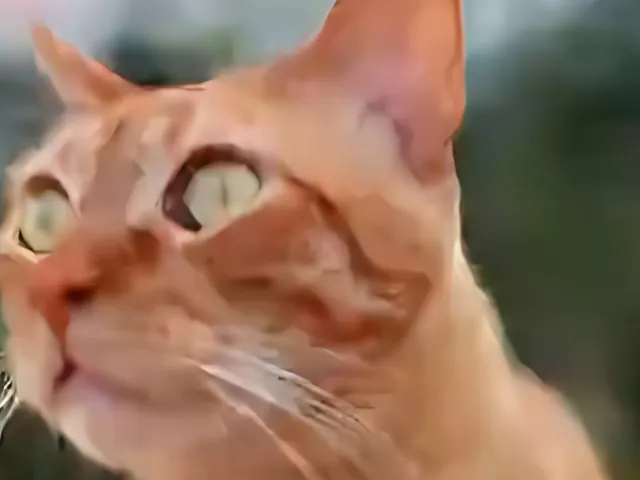
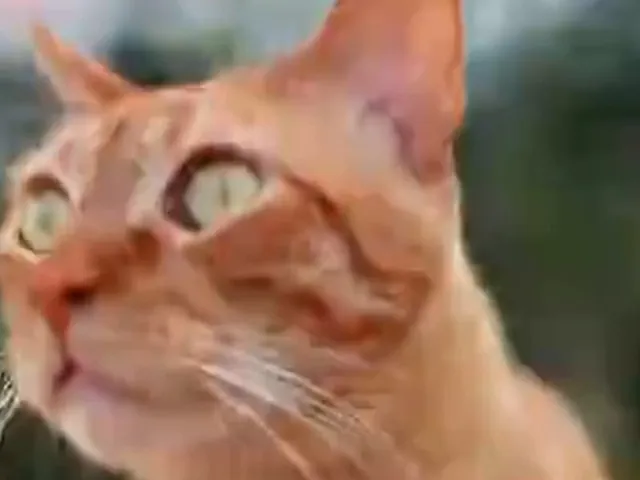
Free · never uploaded · any length
Will this fix your Instagram video?
- Best for
- Clips smaller than 1080p that you want to post sharp. The settings below fix blur that comes from the upload itself.
- On a phone
- Fast mode makes 1080p free on the phone, with a lighter sharpen than the AI shown above. AI enhance runs in the cloud or free on a computer.
- On a computer
- AI enhance runs free in your browser, then send the 1080p file to your phone to post.
- Already 1080p?
- Then the upload setting and the export size below are what matter.
Why your Instagram video looks blurry
Most blurry Reels come from one of these, and each has a fix.
- Upload quality setting is off
- Instagram has an Upload at highest quality switch under Media quality. With it off, Instagram adjusts upload quality to your connection, which can mean a softer copy. Turn it on and post over Wi-Fi.
- The clip is smaller than 1080p
- A 480p or 720p clip from an old phone, a download or a messaging app is stretched on a 1080p screen. Enlarge it to 1080p with AI before you post, in the tool above.
- Wrong size or shape
- Reels and stories are 1080 × 1920 (9:16). Export at that size, at 30 fps, as MP4 with H.264. Instagram does not show Reels in 4K, so a 1080p file is enough.
- Edited and saved many times
- Every export compresses again. Export once from the original footage, at a high bitrate.
How to post sharper Instagram videos
- Turn on the upload quality setting In Instagram, go to your profile, open the menu, and under Your app and media tap Media quality. Turn on Upload at highest quality. The same switch is under More options on the last screen before you share a Reel.
- Check the size of your clip Drop it in the tool above. It only offers sizes bigger than your clip, so if 1080p is on the list, your clip is smaller than Full HD and worth enlarging.
- Enlarge small clips to 1080p Keep AI enhance on and pick 1080p. Edges, text and patterns are redrawn, in your browser, with no upload and no watermark.
- Post the 1080p file over Wi-Fi Instagram still compresses it, but it starts from a sharp, full-size file.
The sample above is a small, heavily compressed clip of a cat enlarged with a normal resize and with AI enhance, from our 8 Nov 2026 test on four clips. AI enhance brings back whiskers and eyes; it works best on small clips that are clean enough to show the detail.
Sharper videos on other platforms
- Why videos get blurry on chat apps and social media, and how to keep them sharpEvery chat app and social network, and how to keep video sharp on each.
- Fix blurry TikTok videos before you postThe same problem on TikTok, and its HD upload setting.
- Upscale your video to 4K before you upload it to YouTubeYouTube treats 4K uploads differently. Here is why.
- Fix a video that downloaded or saved in low qualityA clip you saved that came out small.
Questions about Instagram video quality
Why does my Instagram Reel look blurry after I upload it?
Instagram compresses every upload, and with Upload at highest quality off, it adjusts quality to your connection. Turn the setting on, post a 1080 × 1920 file over Wi-Fi, and enlarge clips smaller than 1080p before you post.
Should I upload 4K to Instagram?
No need. Instagram does not show Reels in 4K, so export at 1080 × 1920. A 1080p file keeps the most detail through its compression.
Can I fix a Reel I already posted?
Not in place. Fix the file, then post it again as a new Reel.
How do I make a low quality video HD for Instagram?
Drop it in the free tool above and pick 1080p. AI enhance enlarges it and redraws edges and text, in your browser with no upload or watermark.