Enlarge a video frame for printing
Export a still frame from the original video rather than taking a screenshot of the player. Choose a sharp frame, then enlarge that image if it is too small for the print you want.
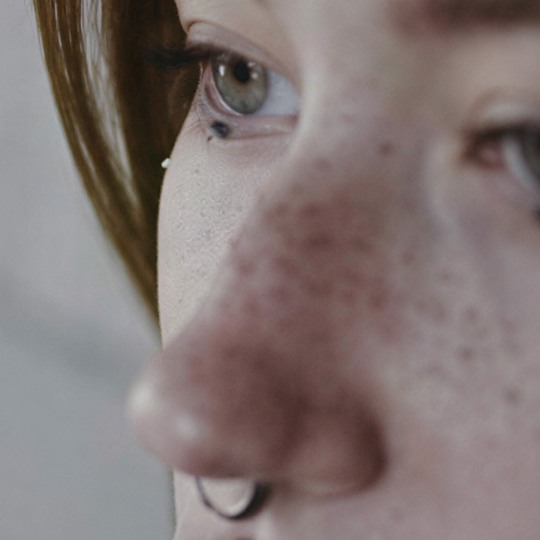
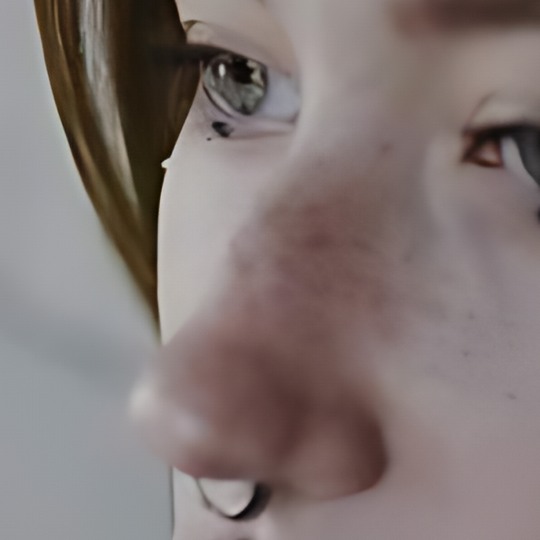
Look at the skin texture and eyelashes. Clearer-looking texture may include generated detail.
Portrait: cottonbro studio / Pexels, downsampled test image. Example credits
or drop it here
JPEG, PNG or WebP
Free · No signup · No watermark
Examples use 4×. Choose your output after selecting a file.
Bigger doesn’t always mean better. Photo enhancement can change fine details. For text or logos, check the result carefully.
Choose a frame worth printing
- Use the source video
- Start with the highest-quality local file you have permission to use. A frame from a small preview or a compressed repost cannot contain detail that was lost before you downloaded it.
- Pick a sharp moment
- Pause around the moment you want and compare nearby frames. Avoid a transition, fast movement or heavy motion blur. A sharper nearby frame is usually a better starting point than trying to rescue a smeared one.
- Export the frame first
- ToHD’s image tool accepts a still image, not a video. Export a PNG or JPEG in your video player or editor, then use that file in the image tool above. Processing the entire video is not required for one print.
From video to a still-image file
- Open the original in a player or editor In desktop VLC, the Video menu has a snapshot command. The VideoLAN documentation explains the video and snapshot controls. Menu wording and save locations depend on the version and operating system.
- Save the selected frame Use the player’s frame-export or snapshot command instead of taking a screenshot of your desktop. A desktop capture may include the interface or reflect the player’s displayed size.
- Check the exported image Read its pixel dimensions. Confirm the orientation and picture shape, especially for old non-square-pixel video. Compare colour with the source; HDR tone mapping and player settings may change the appearance.
- Enlarge and download Select the exported still in the tool above and try 2× or 4× on your device. Download the PNG, compare it with the original frame and check that important faces, text and edges have not been altered.
How large is a 1080p frame on paper?
A full 1920 × 1080 frame is about 6.4 × 3.6 inches at an example density of 300 pixels per inch. A 2× output has 3840 × 2160 pixels, corresponding to 12.8 × 7.2 inches at that density. Those figures describe pixel placement, not recovered camera detail or a guaranteed good print. Cropping to a different shape reduces the area available. Ask your print provider for its target density and order a proof if the final print matters.
For a book or a framed still
Keep the full exported frame and make a separate crop for the layout. Send the designer or printer the actual image dimensions, not just a claim that the image is “4K.” For a book, confirm the placed size and colour requirements. A little film grain may belong to the source; do not remove or redraw meaningful detail just to make a still appear cleaner.
When to stop enlarging
- Motion blur remains
- The tool cannot reliably reconstruct what the camera did not record sharply. Choose another frame or a smaller print instead of treating a large output as proof of a restored moment.
- Faces or lettering change
- Compare with the source and reject altered details. AI enlargement is not accurate recovery of unreadable lettering or evidence.
- Colour does not match
- Resolve the frame-export or colour-conversion issue before enlargement. ToHD is not an HDR mastering or print-colour proofing tool.
Questions about printing a video frame
Is a player screenshot the same as an exported frame?
A screenshot may include player scaling and interface elements. Export a still from the original file when possible, then verify its dimensions.
Can a 1080p frame become a large print?
It depends on the crop, source detail, intended size and viewing distance. Try a small proof rather than judging only on screen.
Should I upscale the entire video first?
For one still image, export the frame first and test image upscaling. Processing the whole video is not required.
Can this remove motion blur from a frame?
It cannot reliably recover detail that motion blur did not record. Choose a sharper nearby frame when possible.
Why does the exported frame look different in colour?
Player colour management and HDR-to-SDR conversion can change appearance. Check the exported file before enlarging it.