Upscale a PNG and keep its transparent background
Use the free on-device image upscaler for 2× or 4× enlargement. It preserves transparency and downloads a PNG. Check fine edges against both light and dark backgrounds before using the result.
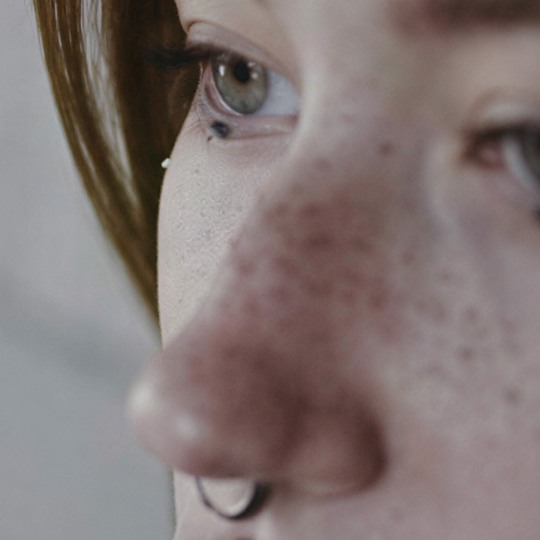
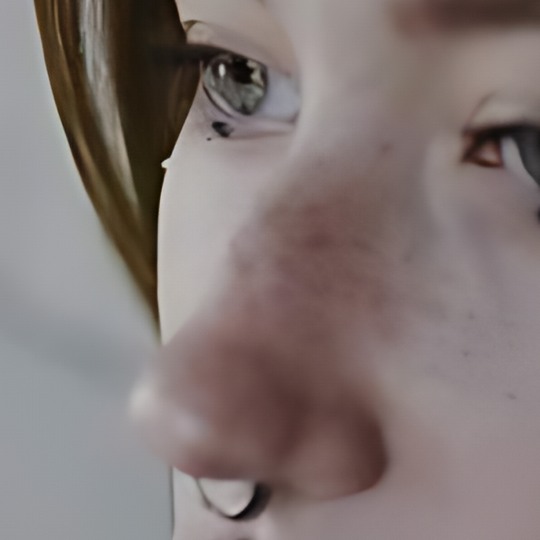
Look at the skin texture and eyelashes. Clearer-looking texture may include generated detail.
Portrait: cottonbro studio / Pexels, downsampled test image. Example credits
or drop it here
JPEG, PNG or WebP
Free · No signup · No watermark
Examples use 4×. Choose your output after selecting a file.
Bigger doesn’t always mean better. Photo enhancement can change fine details. For text or logos, check the result carefully.
Keep the transparent parts transparent
- Use the on-device option
- Choose a still PNG and start with free 2× or 4× processing. The download is a PNG that retains transparency. This needs a recent browser with WebGPU. Cloud enhancement currently requires an opaque image, so it is not the path for transparent artwork.
- Check the source first
- A checkerboard in an editor can be a transparency preview. A checkerboard painted into the image is actual content. This tool enlarges the file you give it; it does not remove a baked-in white background or turn a screenshot into a transparent asset.
- For exact artwork
- Get the original SVG or design file if you can. A larger PNG is still a raster image. AI may alter fine linework, lettering or tiny decorative details; enlargement is not vector tracing.
Enlarge an overlay without flattening it
- Start with the original PNG Download the actual transparent asset rather than a screenshot from a design app. Keep this source so you can compare the result or return to it.
- Select a modest scale Choose On this device and 2× in the tool above. Use 4× when you need more pixels, rather than repeatedly enlarging an already processed copy. A large image may exceed your browser’s memory.
- Compare edges at the same displayed size View the source and result against a light background and a dark background. Look at thin lines, curved edges, holes inside shapes and translucent shadows. A checkerboard alone can hide a fringe.
- Download and test in your design Save the PNG and place it over the background you actually intend to use. Confirm there is no unwanted white rectangle and that soft shadows still blend into the design.
A 256-pixel border: what 2× and 4× change
A 256 × 256 asset becomes 512 × 512 at 2× and 1024 × 1024 at 4×. These are output dimensions, not a guarantee that every fine curl or letter becomes more accurate. If your invitation needs only a small enlargement, compare 2× first. Check the corners and repeated pattern joins before placing it around text. This is a worked size example, not a measured quality result.
When a larger asset is still the wrong asset
- The background becomes solid
- Check whether you selected cloud enhancement, exported through a different app or saved as JPEG later. JPEG cannot retain a transparency channel. Keep the PNG through the workflow.
- The design looks different
- Compare fine detail with the original. If the new version redraws a letter, breaks a line or changes a symbol, use the original design source or a smaller enlargement. Do not assume a sharper outline is the correct outline.
- You need a cut file
- A PNG does not provide editable vector paths for a cutting machine. Get a vector original or trace it in an appropriate editor. ToHD does not produce SVG files.
What has been checked
The released image tool has completed a transparent PNG 4× download test with transparency retained. That checks the file path, not every type of logo, fine border or semitransparent shadow. Inspect your own asset before using it in a final design.
Questions about transparent PNG enlargement
Will the result keep a transparent background?
Yes, on-device processing preserves transparency. Check the exported PNG on more than one background. Cloud enhancement requires an opaque image.
Why does my PNG look like it has a checkerboard background?
Some viewers show a checkerboard behind transparent pixels. If the pattern is part of the image itself, upscaling will not remove it.
Can I upscale a transparent image 8×?
Not through the current cloud path. Use the on-device 2× or 4× option for transparent images.
Will this turn a PNG into an SVG?
No. The download is a raster PNG, not a vector SVG.
What if fine lines or shadows change?
Compare the source and result. Use the original artwork or a vector source when precise geometry matters.